Application #3: SingaSpots
- muhdhaziq8190
- Oct 26, 2020
- 8 min read
Updated: Apr 29, 2021
Introduction
SingaSpots is a simple and easy-to-use application for users travelling to Singapore who are wanting to find out more about its hotspot locations that they could visit, as well as a "recipe book" of the various multi-cultural dishes that are available here!
Existing Problem
Singapore is a relatively small country, and with it being as such, one would expect that travelling around it would be made quick and simple. However, that is not the case. What Singapore lacks in size, it makes up with the facilities and food that it has,
First, facilities. Despite its size, Singapore has many locations that might interest tourists. With there being so many however, it can be difficult to decide which one in particular said tourist would like to visit first. As such, this application offers a simple list of places that tourists typically enjoy visiting, along with descriptions of it to better help users with their decision-making process.
As Singapore is a multi-cultural society, there is naturally a wide variety of food available. While you could get the food at hawker center prepared locals to have a more authentic experience, sometimes just making the food yourself is more fulfilling. This being the case, this application offers a list of Singaporean foods that are simple enough to make, with clear-cut instructions as well as videos to aid in the process.
Competitor Analysis
#1: Visit Singapore Travel Guide
https://play.google.com/store/apps/details?id=sg.gov.stb.visitsingapore


Strengths:
Built-in map function to lead user to destination
Search function for specific or similar locations
Suggestions on places to go
Tips for essentials while user is in Singapore
Weaknesses:
Can be limited in its uses, mainly useful for users who aren't familiar with Singapore
Opportunities:
Can be effective in gaining interest in possible things to do in Singapore
Threats:
Officially by Singapore's Health Tourism Board, likely to be more trusted than an individual developer
#2: Singapore Travel Guide, YouTube, MRT, Map
https://play.google.com/store/apps/details?id=com.intelmenu.city&hl=en&gl=US





Strengths:
Includes tourist attractions
Able to download maps for offline viewing
Includes built-in map of Singapore
Weaknesses:
UI is too simple
Doesn't offer much in terms of functions
Opportunities:
Provides the very basic requirement of what the app is meant to do. Mainly for users that aren't too picky in their usage of applications so long as it fulfils its purpose
Threats:
Can be easily overshadowed by more intuitive apps like the official one by Singapore's Health Tourism Board
My Solution: SingaSpots







Development Process
Firebase
Overall, the app itself was relatively simple to make. The idea itself was simple; display a list of popular tourist spots and local foods (that can also be DIYed) so as to leave a positive impression of Singapore on tourists.
But where would information for these popular tourist spots and foods be retrieved from? While yes, they can be hardcoded into the application itself, I felt that doing that would not be feasible and less flexible when it comes to updating data for these items, such as if there are different tourist spots being popular in a particular month/year.
As such, I decided to implement a Realtime Database through Firebase. This way, I'll be able to update retrieve data much more seamlessly.

Firebase not being an SQL database made it a little difficult to learn at first, but after looking up online on how it works and testing it out a bit, I managed to get a better understanding of it, and created the 3 "tables" shown in the above screenshot: favourites, food, and locations.
Each item in food and locations contain different keys, each with their own value. For example, the first item in food has the key of "favourite", which has a boolean value of true.
Note: For some of the keys in the food table such as "marinade", "methods", and "ingredients", I used a double slash "//" to separate each item and make it easier to display.
Home Page


(Click to enlarge)
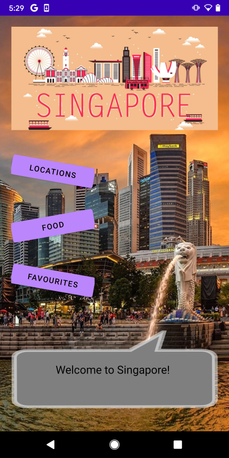
Creating this home page wasn't too difficult, the UI itself was simple enough.
The background was attached to the LinearLayout used in the .xml file, along with ImageViews for the "Singapore" banner and textbox at the bottom for the merlion. In the middle, we have three buttons: Locations, Food and Favourites, each leading to their respective pages.
As for the coding part of it, relatively simple. Just starting an intent for the next page based on the button selected. For the Food and Location buttons however, since they have have similar UI, I decided to pass some data through an extra named type, with the value of either location or food. This will be used to check which button was selected when we transition to that screen, which we will see later.
Locations/Food Page

(Click to enlarge)
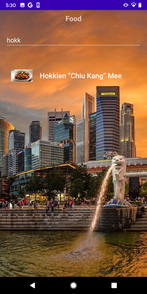
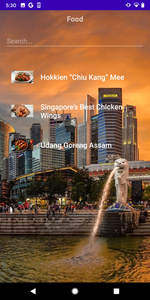
Since the code for both these pages are pretty similar, I'll only be showing it for the locations page to keep things from being repetitive. The UI was simple enough, a TextView at the top to display to the user which screen they're on (changes depending on the extra passed from the previous intent). an EditText below it for the user to search for a particular place (that exists in the database), and finally, a ListView that retrieves data from the Firebase Realtime Database shown in the above section.
Coding


First comes linking the Objects in the UI to a variable, as can be seen in the first 3 lines. Following that, we retrieve the extra data passed from the intent in the Home screen, and assign it to the variable "type".
Next comes initialization of two ArrayLists, foodArrayList and locationArrayList, where the data retrieved from Firebase would be stored. The third nameList was mainly used for easier passing of data to the next screen, which displays the details of the selected item in the ListView.
Finally, we create a Database Reference called "ref" and reference it to the Firebase Database that has already been established within the gradle.

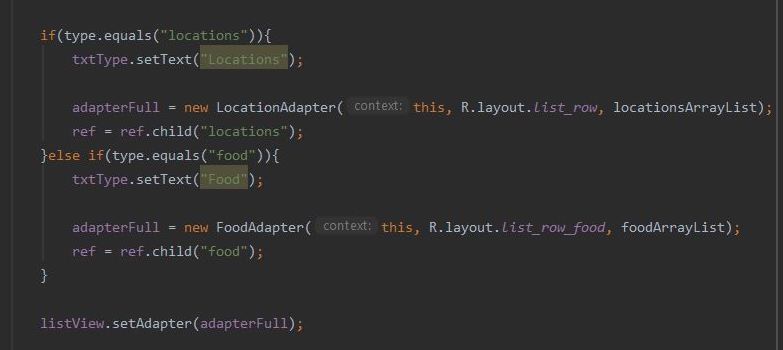
Here, we check for the value of variable "type", and depending on whether it points to "locations" or "food", 3 lines of code will execute; setting the text for the txtType TextView, setting the CustomAdapter for the respective ArrayLists, and setting the proper reference point in the database.
Retrieving & Displaying Data from Database


Following that, we created an event listener for that reference point. Within that event listener we first clear the created ArrayLists so there are never any duplicates when for example, the user returns to this screen from another screen.
Checking of the selected type is again necessary here, and for each type, similar codes are executed, just as before. First, a foreach loop is created so as to retrieve all the data from that reference point, and within that foreach loop, each item is placed into a location/food object. The object themselves, as well as the name of the item, are added to the foodArrayList/locationArrayList and nameList respectively.
Once the ArrayLists are filled, we sort them in alphabetical order to make it easier for the user to view these items, and finally we notify the adapter the DataSet being used has changed, updating the ListView and allowing the data to display all the items properly.
The codes for the food/locations objects can be seen below.


They're basically there to hold the data for each location/food item in the database, each containing variables for the keys seen in the database.
Search Function


With that done, the next feature I had planned on implementing was a search function. Overall, this was actually pretty similar to the previous section of retrieving the data and displaying it.
To put it basically, the main difference here is that I created a TextChangedListener on an EditText, and constantly get it to check against the "name" key of the item in Firebase.
If the user were to search nothing, meaning if the userSearch EditText is empty, it will just display all data retrieved. However, if it's not empty, the value of that userSearch EditText is checked against any items in Firebase with the same name and displays only that.

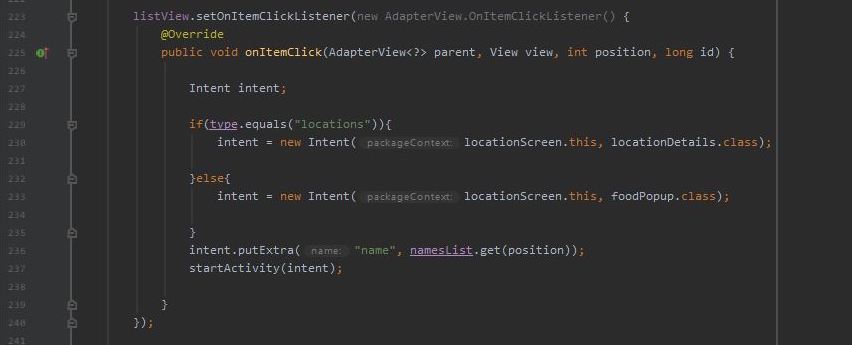
Lastly, we create an ItemClickListener for the ListView itself to start an intent for the next page, which is the food/locations details page, while also passing off an extra for the name of the selected item.
Location Details Page


The layout for this page was relatively simple as I wanted to just convey the important parts of the information.
Coding


Due to the simplicity of this screen, the coding process was also somewhat simple as well. To put it basically, I retrieved the the data from the database by checking for names that are similar (the name was taken from the extra passed from the intent).
It also checks whether the "favourite" parameter in that item is set to either true or false, and depending on that, the color of the favourite button changes to either pink or blue respectively.
At the bottom from lines 79 to 81, I used a class I created called LoadImage to display an image from a URL on the ImageView. More on this later.


For the actual favourites button, on top of the colors changing whenever the user clicks on them, it also adds data to the favourites table in the database for whichever item was displayed. For example, if "East Coast Park" was selected and the favourite button was clicked, all the data concerning that (name, id, description etc.) would be inserted into the database.
LoadImage (from URL) class


As we saw above, I used a LoadImage class from a tutorial I found to display images attained from URLs. This class uses an InputStream to read the data from a given link, and BitmapFactory to decode that inputStream into a Bitmap object. The ImageView then uses this bitmap to display the corresponding image that was retrieved.
Food Details Page


For this page, I wanted to do something different than the locations details, so I decided to implement a popup page as opposed to a standard screen-swapping. I wasn't quite sure how to go about that though, so I went to look up online for different methods in implementing this.
Coding
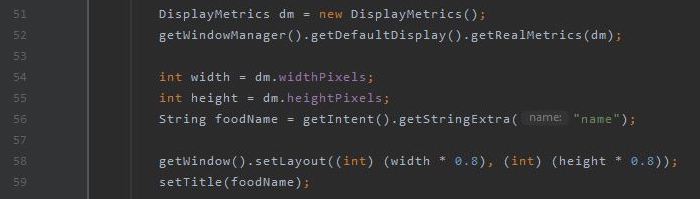
For this, along with some help from a tutorial on YouTube, I used DisplayMetrics to set the sizing of the screen to about 80% of the user's device. I also retrieved the "name" extra from the previous screen's intent, which points to the name of the food, which I then used to set the title of the screen.


Next comes creating the two DatabaseReference points; one for the food table, and the other for the food table in favourites.


Afterwards, I created an AddValueListener for the first reference point to the actual food table. Then I retrieved the values from the table based on the name of the food item taken from the extra in the previous intent.
From there, for data such as ingredients, marinate and preparation method where there are a bunch of other steps included, I separated them with the split method to place them into an array, after which I display them all in their respective textboxes.
As with the location details screen, there is also a button to favourite the food which also changed color based on whether it was already favourited or not.
YouTube Video Player

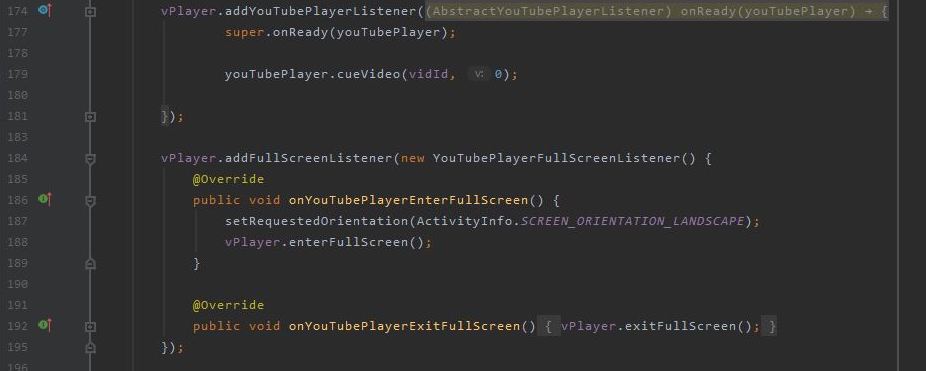
For this, I used the YouTube API (and video tutorial) to add the player into the application through the .xml file. In order to get the video player to play a particular video, I needed its video ID which can be attained from the YouTube link.
For example, for this link: https://www.youtube.com/watch?v=b_tz8kbFUsU ,
the video id would be whatever comes after the "?v=", in this case being b_tz8kbFUsU.
Using these video IDs that were retrieved from the database, I created a YouTubePlayerListener to cue the video into the player.
Once that was done, I added another listener to allow the video player to actually play in full screen as well as turn the orientation of the device to landscape.
Favourites Page
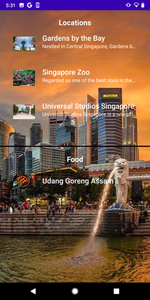
The favourites screen was pretty simple as it was just combining the display of displaying the data retrieved from both the food and locations table in the favourites section of the database.


The only real difference in the code here is the reference point for the database, as well as separating the top and bottom parts of the screen into two. As such, I won't really be going too deep into this.
GitHub
APK
References
- Singapore Destinations
https://www.holidify.com/places/singapore/
- Singapore Food
http://mysingaporefood.com/
- Popup Window
https://youtu.be/fn5OlqQuOCk
- Embedding YouTube Video
- LoadImage from URL
https://youtu.be/hUViwFochtk


Comments